
Best Free AI Squish Effect App (Tested and Compared)
Quick Answer: Pika is genuinely the easiest way to try the AI squish trend, but “free” comes with real limits: it costs credits per generation, and removing the watermark requires a paid Pro plan starting at $6.44/week (billed yearly). Fine for one fun video, not ideal if you want clean, repeatable results without paying.
Okay, so if you’ve been anywhere near TikTok lately, you’ve probably seen it. Someone posts a totally normal photo, their dog, their best friend, sometimes just themselves, and then suddenly it’s getting squished and stretched like it’s made of Silly Putty, bouncing back into shape with this weirdly satisfying, almost ASMR-like motion. It looks like your photo got turned into one of those squishy toy keychains everyone had as a kid.
And the wildest part is how fast it spread. One week it’s balloon-floating filters, the next week everyone’s uploading their pets to get the squish treatment. It’s silly, it’s oddly mesmerizing, and it takes about thirty seconds to actually see it happen once you find the right tool.
But here’s where it gets a little annoying. You go looking for an app to try it yourself, and suddenly you’re three tabs deep comparing tools you’ve never heard of, half of them want you to pay before you’ve even seen a result, and the ones that are free tend to slap a giant watermark right across your video the second it’s done. So now you’re stuck wondering: is there an actual free version of this that doesn’t ruin the video, or is “free” just a bait-and-switch to get you to upgrade?
That’s exactly what I wanted to figure out. Instead of just repeating what every tool’s own landing page claims about itself, I actually went and uploaded a photo, sat through the generation process, and saw firsthand what you actually get for free, what’s hidden behind a paywall, and which app is worth your time if you just want to join the trend without spending a dime.
So let’s break down what this trend actually is, and which free apps are genuinely worth using.
What Is the “Squishy” AI Photo Trend, Exactly?
So basically, the “squishy” AI trend is a video effect that takes a regular photo and turns it into a short animation where the subject looks like it’s being squeezed, stretched, and bounced around like a soft toy. Think of those squishy keychains and stress balls that slowly pop back into shape after you press them, that’s exactly the feeling these AI tools are recreating, except now it’s happening to your photos instead of an actual toy.
And honestly, it works on almost anything. People are using it on selfies, photos of friends, pets, stuffed animals, even food. Upload a picture of your dog, and a few seconds later you’ve got a video of your dog getting playfully squished like it’s made of memory foam, then popping right back to normal. It’s silly, it’s a little weird, and that combo is exactly why it’s spreading so fast.
This trend actually grew out of a slightly different one, the real-life “squishy toy” trend, where people online were cutting open, microwaving, or freezing actual gel-filled toys just to watch them ooze and stretch dramatically. That one actually turned dangerous, kids were getting burned trying to recreate it with real toys, and doctors started warning parents about the risks. AI tools basically stepped in with a safer version, you get the same visually satisfying, gooey, bouncy effect, but it all happens on your screen instead of in a microwave.
Technically, this falls under a broader category called image-to-video AI, where a tool takes one still photo and generates a short moving clip based on it. The AI studies the shape and edges of whatever’s in your photo, then applies squash-and-stretch animation principles, the same basic trick cartoon animators have used for decades to make characters feel bouncy and alive, to pull off the squishing motion.
End result, a few seconds of oddly satisfying video, perfect for TikTok, Instagram Reels, or just making your friends laugh. And thanks to a growing pile of AI apps built specifically for this effect, you don’t need any editing skills at all to make one yourself.
If you’ve been messing around with other AI photo and image tools lately, this trend fits right alongside things like Meta’s new Muse Image generator, it’s really part of the same wave of AI tools making it easier than ever to turn a regular photo into something completely different.
We Actually Tested It: Here’s What Happened
Instead of just repeating what Pika’s landing page claims, I actually went and tried it myself. Here’s exactly what that looked like.
I uploaded a photo of my dog, a black Lab lying on the pavement next to a road stripe, and clicked the “Squish It” effect from Pika’s effects menu. Right away, a confirmation screen popped up showing my uploaded image with a note underneath: “By clicking generate, you confirm that you own or have the right to use all inputs provided.” Worth knowing upfront if you’re planning to squish a photo you didn’t take yourself.
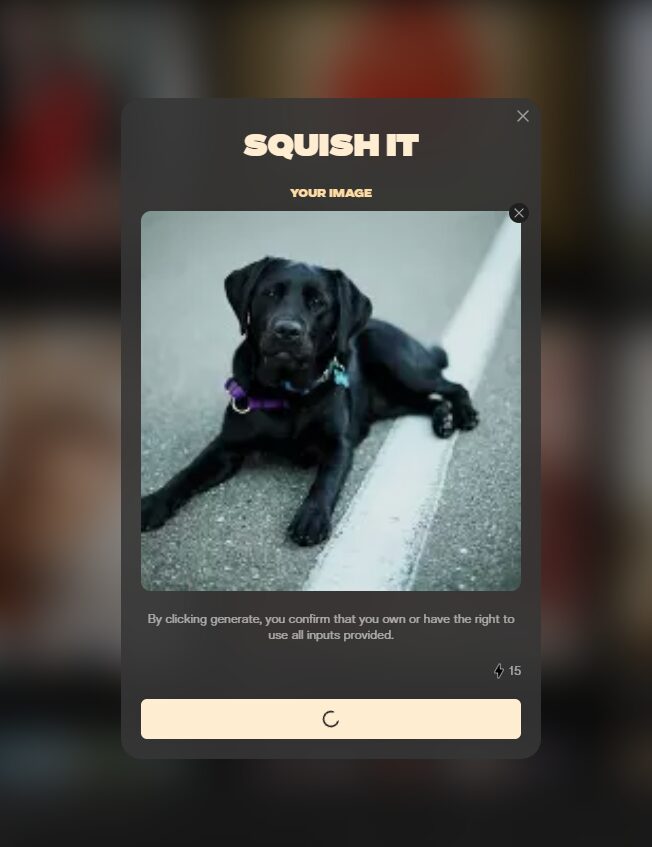
Right next to the generate button, I noticed the cost, 15 credits for one generation. That’s not nothing. Pika’s free tier gives you a limited pool of credits to start, so depending on how many you have, one squish video could eat up a big chunk of your free allowance in a single click.
I hit generate and watched the loading spinner for a bit while it did its thing. Once it finished, the result was genuinely fun, my dog’s photo turned into a short, bouncy animation, squishing and stretching exactly like the trend promises. But when I actually went to download it, that’s when the second screen popped up, a pricing table for Pika 2.5, making it pretty clear that downloading with no watermark means upgrading to at least the Pro plan.

Looking at the actual numbers, Pro starts at $14.99 if you pay weekly, or drops to $6.44 a week if you commit to a full year upfront, works out to $336 total for the year. That’s a real cost difference worth knowing before you get emotionally invested in a video you can’t cleanly download.
So the honest takeaway from actually going through it myself: the free version genuinely works and the effect looks good, but “free” here really means “free to preview,” not “free to keep.” If you just want to see the effect once for fun, totally fine. If you want a clean video you can actually post somewhere, budget for the upgrade.
The Best Free Apps for the AI Squish Effect
Pika isn’t the only one doing this. Here’s how it stacks up against a few others, real testing where I’ve got it, public tool info where I don’t.
| Feature | Pika | Filmora | insMind | FlexClip |
|---|---|---|---|---|
| Price | Free tier with limited credits (15 credits per squish generation); Pro plan starts at $6.44/week (billed yearly) or $14.99/week (billed weekly) | Free trial available; full AI squish effect requires a paid Filmora subscription | Squish effect is a paid-only feature, not available even in free trial | Free to start; full-resolution downloads and extra editing tools require a paid plan |
| Key Features | Dedicated “Squish It” effect, works on browser or mobile, also offers Pikaframes, Pikascenes, Pikaswaps, and other effects | Full video editor with AI squish templates built in, plus AI sound effects, available on Android, iOS, Windows, and Mac | Simple upload-and-generate squish tool, positioned mainly for memes and pet videos | Squish effect plus built-in editor for adding captions, stickers, emojis, and voiceovers after generating |
| Watermark on Free Tier | Yes, watermark removal is a paid Pro feature (confirmed directly from our own test, see pricing screenshot above) | Not applicable, effect isn’t available on free tier at all | Not applicable, effect isn’t available on free tier at all | Likely yes on free downloads, full removal typically tied to paid plans (not independently confirmed by us) |
| Best Use Case | Casual users who want to try the trend fast and don’t mind a watermark on their first video | Creators who already want a full video editor and are fine paying for extra features anyway | Users who want a very simple, no-frills tool and are already willing to pay | Creators who want to add captions or extra editing after the squish effect is generated |
Only the Pika row here actually comes from hands-on testing, that’s the one you can trust most since it’s backed by the real screenshots above. The other three are built from what each tool says about itself, worth keeping in mind when you’re picking between them.
If you’re just trying the trend once for fun, Pika’s simplicity makes it the easiest place to start. And if you’re already paying for a full video editor like Filmora anyway, its built-in squish templates might be worth using since you’re not shelling out extra just for this one effect.
The Watermark Problem Nobody Warns You About
Here’s the part that catches a lot of people off guard, “free” AI squish tools are rarely fully free once you actually want to use the result.
In our own test, generating the squish video itself was free, just used up credits from Pika’s free allowance, not real money. But the second we tried to download a clean version to actually post somewhere, we hit a wall. The video either comes with a visible watermark stamped across it, or downloading without one means upgrading to a paid plan.
This isn’t just a Pika thing, either. Across the other tools we looked at, the same basic pattern shows up over and over, the fun part (generating the effect) is free, but the useful part (getting a clean, shareable file) is usually where the paywall’s hiding. Makes sense from a business angle, these companies need some way to turn free users into paying ones, and a watermark is a simple, effective way to do that. But it’s genuinely annoying if you weren’t expecting it going in.
If a watermark doesn’t bother you, plenty of these free tiers work totally fine as-is. A small logo in the corner of a silly, low-stakes video isn’t the end of the world, especially if you’re just sending it to a friend or posting it once for a laugh. But if you’re a creator who wants your content looking clean and professional, or you’re planning to post squish videos regularly, that watermark starts adding up fast, both visually and in how seriously your content comes across.
Honest advice here, try the free version first before committing to anything. See if the effect actually looks good on your specific photo, and only then decide if it’s worth paying to remove the watermark. Don’t assume you need the paid plan just because the free tier mentions one, test the free result first and let that make the decision for you.
Free vs. Paid: Is It Worth Upgrading?
So, should you actually pay for a squish app, or just stick with the free version? Honestly, it depends entirely on how you plan to use it.
If you just want to try the trend once, show your friends, or post one silly video, the free tier is genuinely enough. You get the full effect, that same bouncy, satisfying animation everyone’s posting, just with a small watermark tagging along. For a one-off bit of fun, that’s a totally reasonable trade-off, no real reason to pay anything.
Where it starts making sense to upgrade is if you’re a content creator posting regularly, running a page built around trend content, or making something for a brand or client where a random watermark would look unprofessional. In that case, Pika’s Pro plan removes the watermark entirely and also gives you higher resolution downloads (720p and 1080p) plus longer videos, up to 10 seconds instead of whatever the free tier caps you at.
Looking at the actual pricing again, $14.99 a week if you’re just testing it out short-term, dropping to $8.05 a week if you go monthly ($35 total), or $6.44 a week if you commit yearly ($336 total, marketed as 20% off). If you’re only using this for one campaign or a short burst of content, the weekly plan actually makes sense even though it’s the priciest per-week, since you’re not locking into anything longer. But if squish-style content is going to be a regular thing for you, the yearly plan wins by a wide margin.
Bottom line, don’t pay for anything until you’ve tried the free version first and confirmed the effect actually looks good on the kind of photos you want to use. Once you know that, deciding whether to upgrade just becomes simple math based on how often you’ll actually use it.
How to Try the Squish Effect Yourself (Step-by-Step)
Want to try it right now? Here’s the simplest way, based on exactly what I did in my own test.
Step 1: Go to pika.art in your browser, no download needed to get going.
Step 2: Upload a photo. Pretty much anything works, a selfie, a friend, a pet, a stuffed animal, even food.
Step 3: Find and pick the “Squish It” effect from the effects menu.
Step 4: Confirm you own the rights to the photo you’re uploading, this pops up automatically before you can generate anything.
Step 5: Hit generate and wait it out. It’ll eat up some of your free credits (15, based on what I saw), and processing takes a minute or two.
Step 6: Once it’s done, preview your result. If you’re fine with a watermark, download it right away, totally free.
Step 7: Want a clean, watermark-free version instead? That’s when you’ll need to upgrade to Pika’s Pro plan, and you don’t have to commit before you’ve even seen your result.
That’s really all there is to it. No editing skills needed, no complicated software, just a photo and a few clicks. Whether you stick with the free version or decide it’s worth upgrading really just comes down to what you’re using the video for.
The Verdict
So, is the AI squish trend worth jumping on with a free app like Pika? Score: 3.5/5
It’s worth it if you just want to try the trend once for fun, post something silly for your friends, or see what all the TikTok hype’s about. The free tier genuinely works, and the effect looks exactly as satisfying as the trend promises.
It’s not worth it if you’re a creator planning to post regularly or need clean, watermark-free videos for actual content. That’s where “free” stops being free, you’ll blow through the credit limit fast, and removing the watermark means committing to at least $6.44 a week. Fine for a one-off laugh, less fine if you’re building this into a real content strategy without budgeting for it first.
FAQ
1. What is the AI squish effect trend?
It’s a viral AI video trend where a regular photo turns into a short animation that looks like the subject’s getting squeezed and stretched like a soft toy, then bouncing back into shape. Works on faces, pets, food, pretty much anything you upload.
2. Is there a free way to do the AI squish effect without a watermark?
Not really, based on what I found testing it myself. Most tools, Pika included, let you generate the effect for free, but removing the watermark from your downloaded video means upgrading to a paid plan.
3. What’s the best free AI squish effect app?
Pika’s one of the easiest to jump into, it’s got a dedicated “Squish It” effect and works right in your browser, no download needed. Just know the free tier runs on limited credits, and each generation eats up a chunk of them.
4. How much does Pika cost if I want to remove the watermark?
Removing the watermark means Pika’s Pro plan, which starts at $14.99 if billed weekly, or drops to $6.44 a week if you pay for a full year upfront, works out to $336 total for the year. There’s also a monthly option at $8.05 a week, billed as $35 a month.
5. Can I use the AI squish effect on pets or is it just for faces?
Works great on pets, actually. In my own test, I used a photo of my dog and the effect applied smoothly, squishing and bouncing the whole thing just like it does with faces or objects. Pet photos are honestly one of the most common uses for this trend. Use Pika